What is write protection on USB?
Write protection (also called read-only) can be physical or virtual. A USB flash drive is enabled with write protection has the ability to prevent new files from being written or old files being changed. Typically, this means you can only read the data which are already stored on the USB, but you can't delete or modify them. By using write protection, you can make ensure data is not accidentally overwritten or erased.How to remove write protection from USB drive?
If you are reading this post, you must be one of them. Deep breath and stay calm. No matter whether you are using Windows 7, Windows 8 or Windows 10, I am going to walk you through a few easy steps to remove write protection and make your USB flash drive writable again.Step 1: Check the write protection switch if available
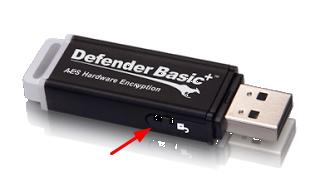
Some USB flash drives have a physical switch which allows you to lock or unlock write protection. The location of a switch on a USB flash drive will be different. Make sure the lock switch is slid up to unlock position. You will not be able to transfer files to the USB drive if it is locked.
Step 2: Clear read-only attributes with DiskPart utility
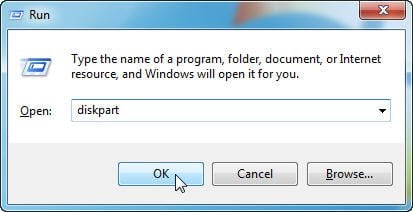
2.1: Press Windows key + R combination on your keyboard. In the pop-up Run dialog box, type diskpart and hit Enter or click "OK" to open the DiskPart Command Prompt.
- list disk - all of the disks connected to the computer will be displayed, including internal hard drives.
- select disk n - where n is the number of USB flash drive. You can use the Size column to identify which one it is.
- attributes disk clear readonly - change your USB's properties so that it is no longer read-only.

Step 3: Edit the registry
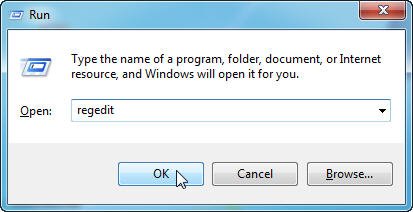
3.1: Press Windows key + R combination on your keyboard. In the pop-up Run dialog box, type regedit and hit Enter or click "OK" to open the Registry Editor.
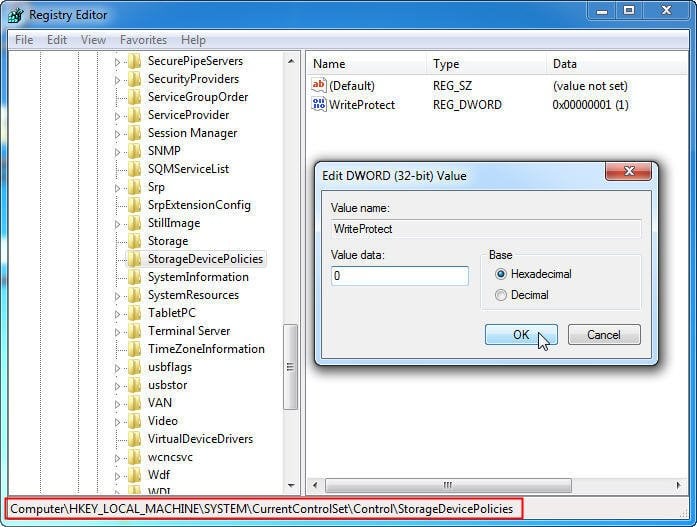
HKEY_LOCAL_MACHINE\SYSTEM\CurrentControlSet\Control\StorageDevicePolicies
3.3: On the right-hand pane, double-click on the WriteProtect or right click on it and select "Modify". In the pop-up window, you may find that the "Value data" is set to 1 which means current computer is enabled with write protection on USB storage device. To disable it, you need to change the value from 1 to 0 and click OK to apply the change.
Tips of Step 3:
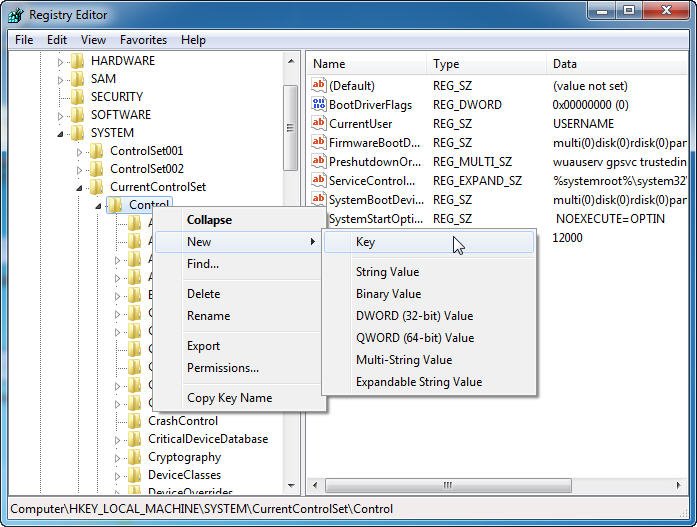
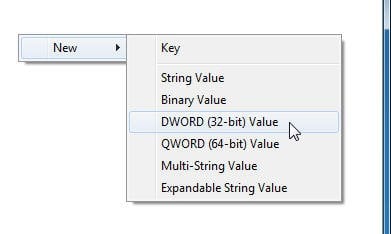
- If there is not a "StorageDevicePolicies" folder under the "Control" folder, you can right click "Control" folder and choose "New" -> "Key". Name it with StorageDevicePolicies and then open it.
- Right click on the white space at the right-hand pane and choose "New" -> "DWORD (32-bit) value". Name it with WriteProtect. And then, double-click on it to check if the Value data is set to 0.
If you've tried all steps above and still can't remove the write protection from USB drive, you may need to format the USB. The problem is how to format a write-protection USB?
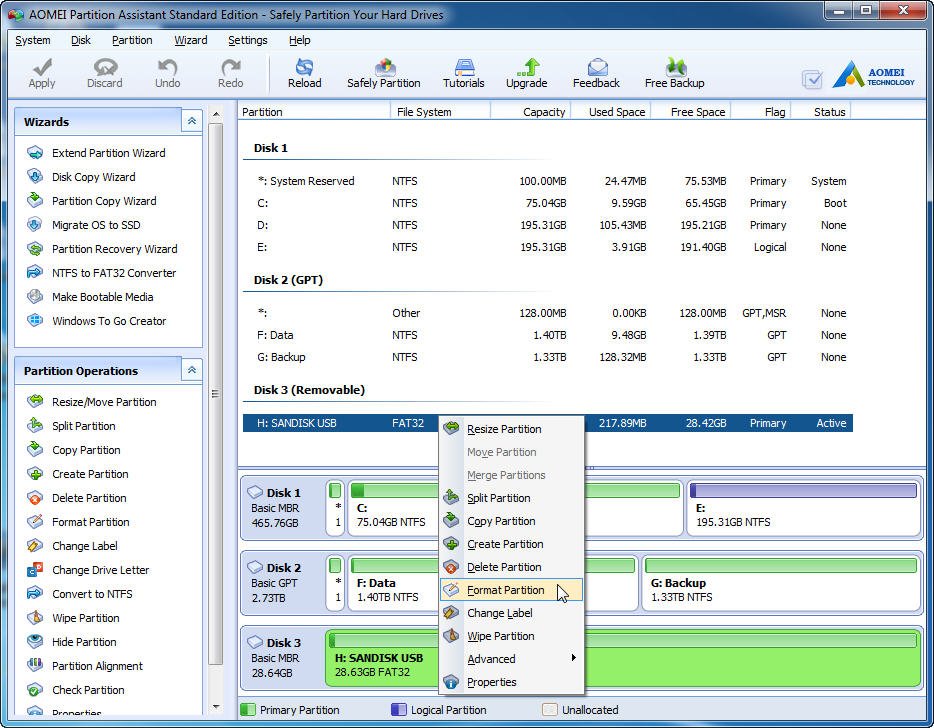
AOMEI Partition Assistant Standard is a free partition manager software and disk management tool for computers running 32-bit or 64-bit version of Windows 10, Windows 8.1/8, Windows 7, Vista and XP. It supports the all types of disk, including mechanical hard drive, SSD, SSHD, external hard drive, USB flash drive, SD card, etc. It enables you to format a USB drive easily and quickly.
Note: Formatting a USB will delete all data on it. Therefore, make sure that you backup all the data from USB drive to your computer.
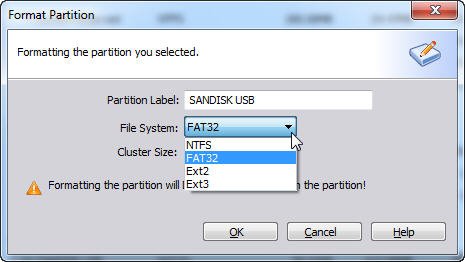
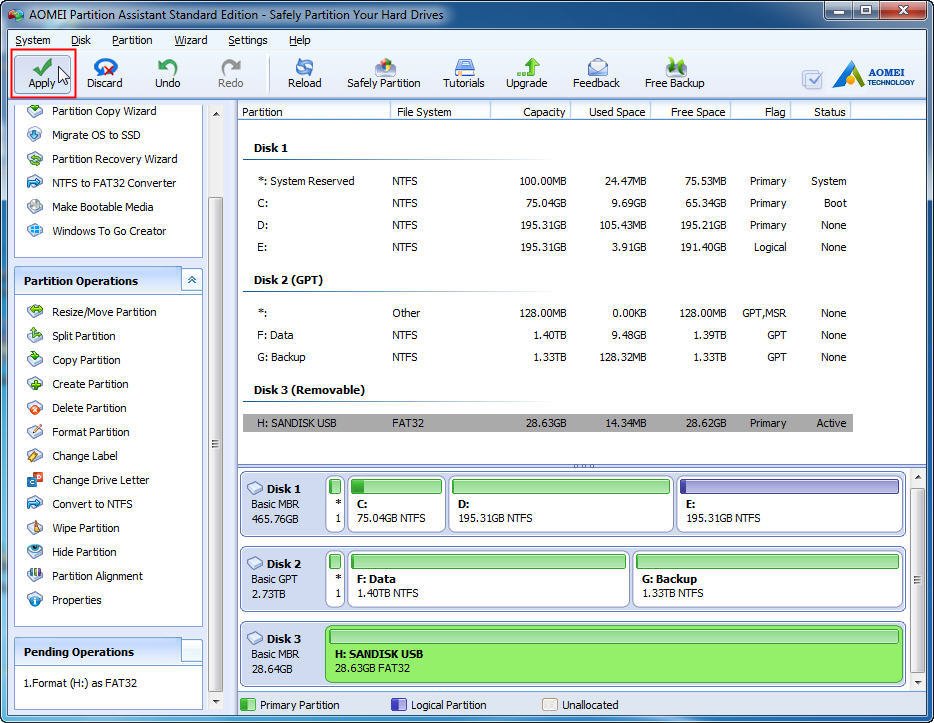
4.1: Download, install and launch AOMEI Partition Assistant. Right click on the USB partition and select "Format Partition".